Install Codex on Windows - The WSL Way
Want to install Codex (OpenAI's terminal coding agent) on Windows? Skip the native install - official support there is still experimental and the sandbox is incomplete. Put it in WSL instead. The whole Codex install takes three steps and about ten minutes.
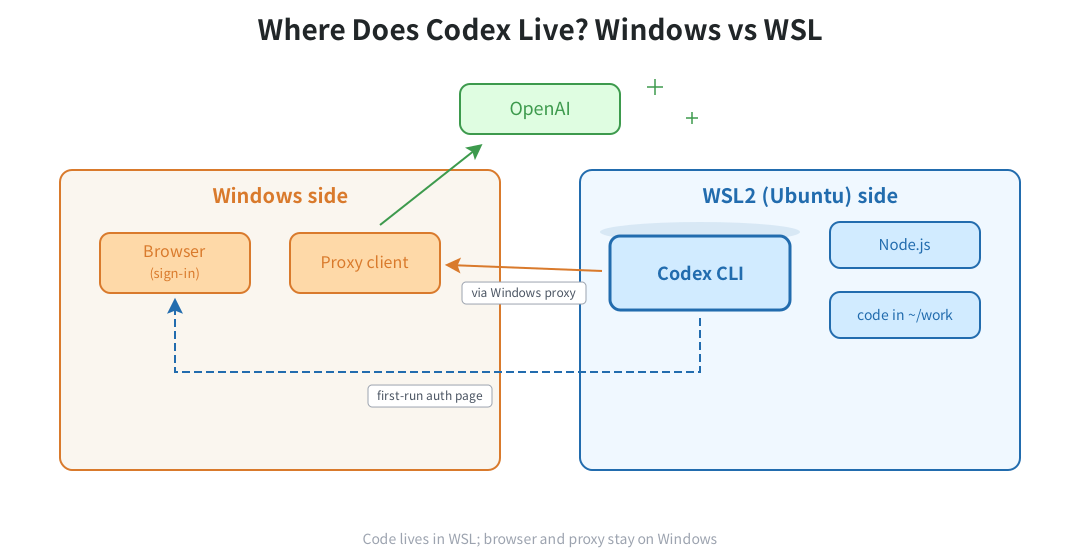
Step 1: Enable WSL2
Open PowerShell as administrator:
wsl --install
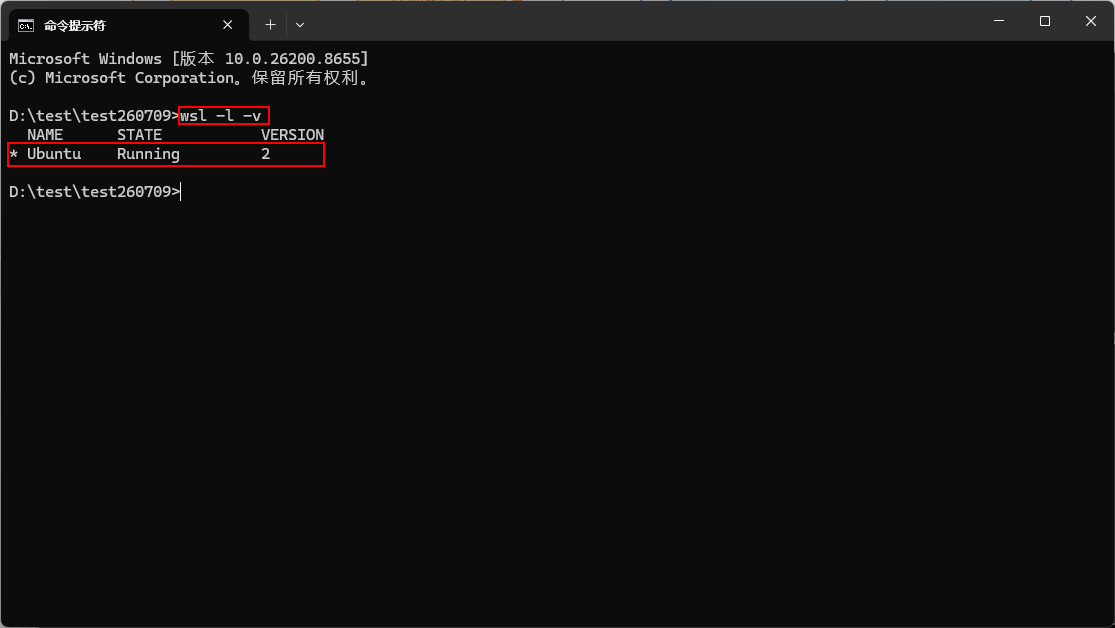
Reboot when prompted, then set a username and password on first launch of Ubuntu. Already have WSL? Check with wsl -l -v; if it says version 1, run wsl --set-version Ubuntu 2:
Step 2: Install Node.js
Codex ships via npm and wants a recent Node (20+ recommended). In your WSL terminal:
curl -o- https://raw.githubusercontent.com/nvm-sh/nvm/master/install.sh | bash
source ~/.bashrc
nvm install --lts
Step 3: Install Codex
npm install -g @openai/codex
codex --version
See a version number? Your Codex install is done.
Sign In and Go
cd into your project and run codex. On first run, pick Sign in with ChatGPT:
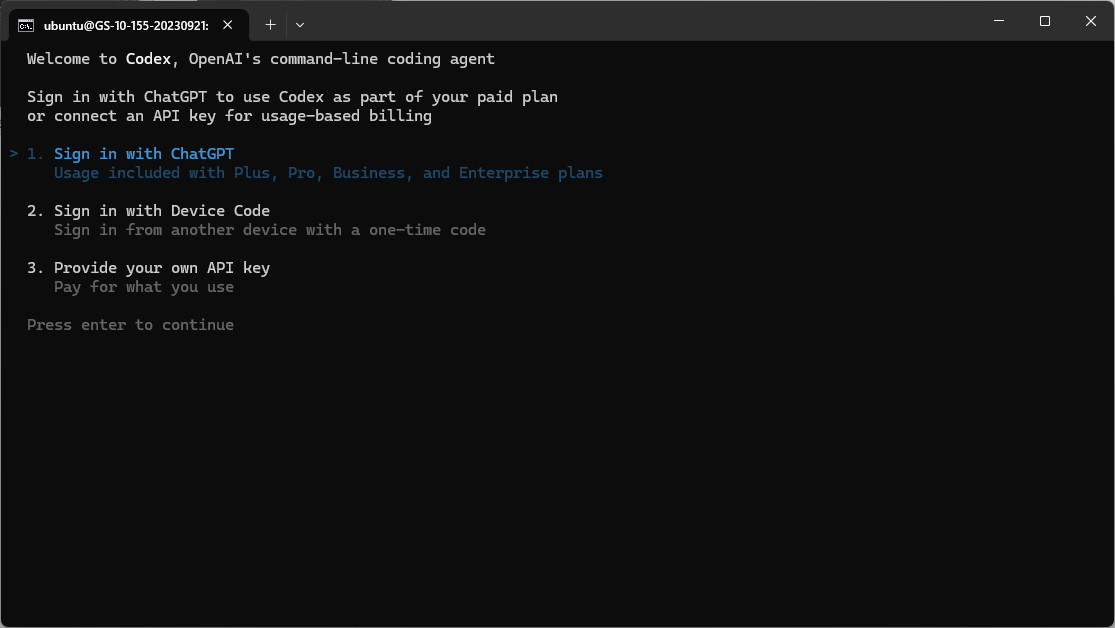
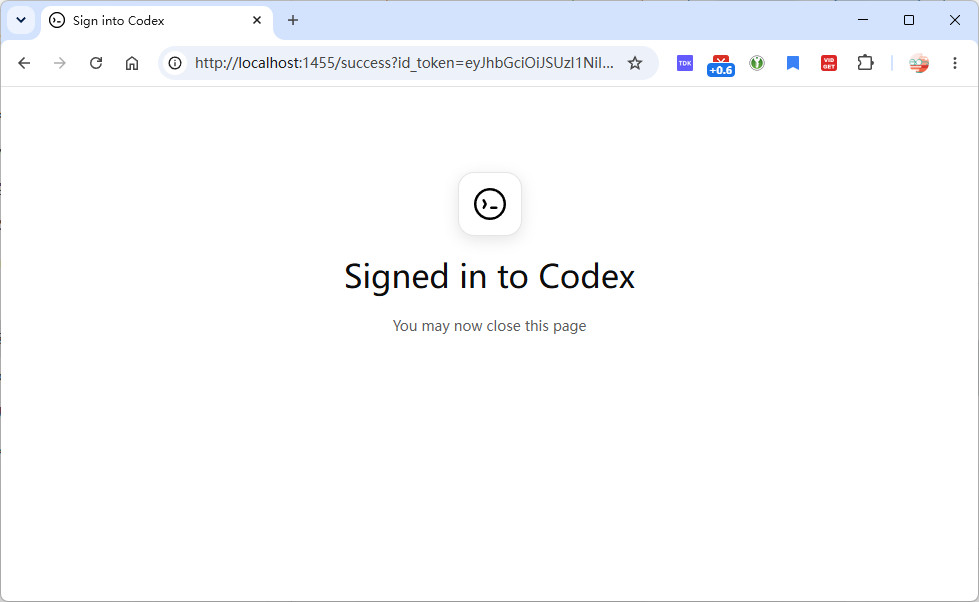
Authorize in the browser with a paid ChatGPT account (Plus/Pro/Team) - WSL2 shares networking with Windows, so the auth page opens right up. This page means you're in:
Prefer API billing? export OPENAI_API_KEY=... in ~/.bashrc works too.
The first run in any folder also asks whether Codex may work without approval - fine for a test folder, but pick 2 (require approval) for real projects:
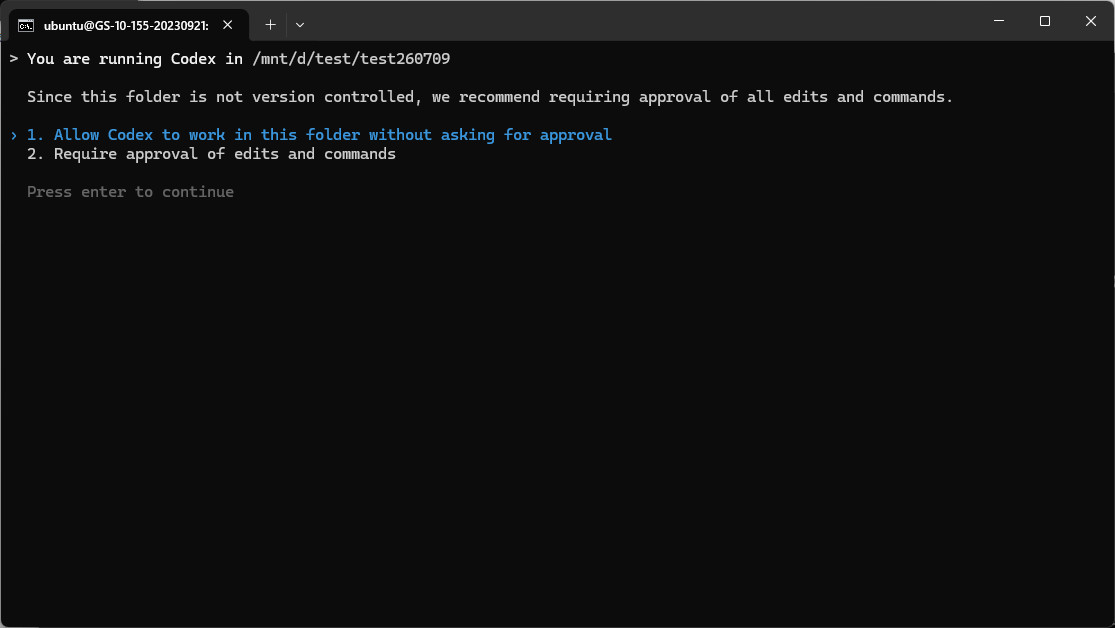
Once you see this screen, you're all set:
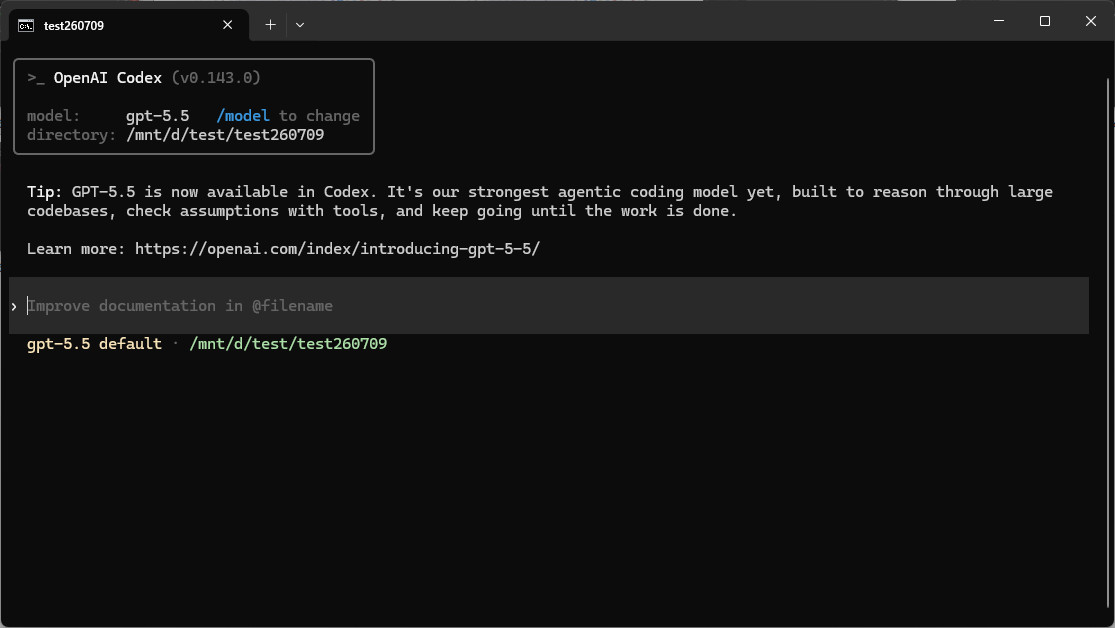
Three Gotchas
- Slow npm behind a proxy: point npm at a closer mirror if needed.
- Codex needs to reach OpenAI: route WSL traffic through your Windows-side proxy with
export https_proxy=http://127.0.0.1:PORT; see How to Pick a Proxy Client. - Where to keep code: inside WSL's own filesystem (like
~/work/), not/mnt/c/- cross-OS file IO is several times slower, and a coding agent hammers the filesystem.
Troubleshooting
codex: command not found: reopen the terminal; if it persists, npm's global bin isn't on PATH.- Auth page didn't open: copy the link from the terminal into a Windows browser.
- Upgrade with
npm update -g @openai/codex, remove withnpm uninstall -g @openai/codex.
Related
- On a Mac? Install Codex on Mac - One Command